Showing posts with label Git. Show all posts

Thursday, June 3, 2021

How to backup Azure DevOps code repositories

Under "shared responsibility in the cloud" model, the client is always responsible for its own data. Azure DevOps, as a SaaS offering, ensures that underling infrastructure (compute, network, storage, etc.) is highly available and the client's data is geo-replicated. You can find all the details how Azure DevOps protects your intellectual property here. However, you might want to have an "offsite" copy of your repositories for archiving, doomsday disaster recovery, or any other reasons.

I've used an approach described by Charbel Nemnom in his blog post. The process was enhanced to cover ALL code repositories within Azure DevOps project (TFVC including) and remove the dependency on the user's PAT.

The backup pipeline

We will use classic build pipeline with schedule trigger to automate the backup process. The YAML pipeline is not suitable for the next reasons:

  1. We want to use native functionality to checkout source code from TFVC
  2. TFVC doesn't support YAML pipelines (we want to backup ALL repositories)
  3. Single pipeline will automatically cover all curent and future Git repositories without any extra steps required
The pipeline use existing project's TFVC repository as a source:

Here, we use mapping feature to checkout code stored in TFVC into subfolder. The pipeline tasks will create extra subfolders for each Git repository within sources directory on the executing agent.

Note. If your project doesn't have TFVC repository, you need to create one:

Select "Empty job" as a pipeline template. In this state, we have a pipeline that will checkout TFVC code. 

Task 1. Download Git Repos


We need to add a task that will download all Git repositories to the agent. The pipeline will use next PowerShell script that utilizes VSTeam module to perform Git repositories discovery and cloning.


Couple words about security. The script uses build service identity to access Git repositories. In order this to work, two Azure DevOps settings need to be changed.
  1. The pipeline job needs to have access to the OAuth token at the runtime:


  2. The job needs to be authorized to access all repositories in the project (otherwise the pipeline will 'see' only explicitly referenced repositories, see documentation for details):


Task 2. Archive source code
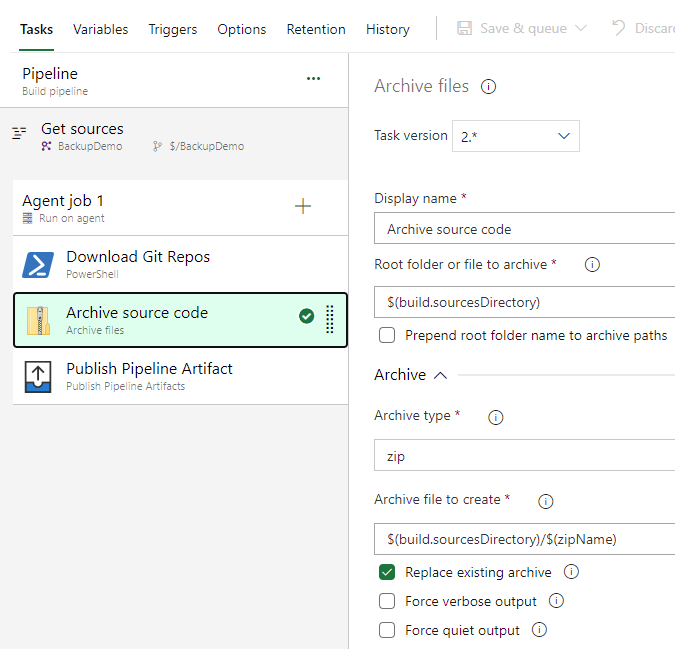
This a standard task that will put all the files collected in the agent's source folder into a ZIP file.

Task 3. Publish Pipeline Artifact


In this demo, we just publish generated repositories archive back to Azure DevOps. In the real world scenario, there are multiple options of what can be done with this archive file:
  1. Upload to the cloud storage service of your choose
  2. Copy to the file server in the corporate network where the regular backup process will take care of the long-term retention
  3. etc.

Trigger


The pipeline is scheduled to perform nightly backups. Checkbox "Only schedule builds if the source or pipeline has changed" must be un-checked to ensure the schedule is not affected by no changes in TFVC repository.

Restore

The Git repositories restore process is described in the blog post I've referenced in the beginning of this article. The TFVC repository restore is as easy as copy TFVC folder content from archive file.

Note about TFVC

TFVC is centralized source control by its nature. It stores the files history on the server. For this reason, the TFVC backup produced by above process is a repository snapshot (at the backup time). The quasi-history can be build from the backup files produced on different days.(Probably, it would be the least of your worries if you will actually have an actual need to restore these repos).

Pipeline execution

My demo project contains next repositories
The downloaded pipeline artifact (the ZIP file) contains TFVC snapshot and the 'mirrors' of the Git repos:

Conclusion

I hope this article will help you to establish centralized source control backup for Azure DevOps and will let you (and your boss) to sleep well knowing that precious intellectual property has an extra layer of protection.


Monday, September 28, 2020

Stale braches cleanup in Git repo

As code development moves forward, collaboration and experimentation flourish, developers join and leave the team, the Git repos start to accumulate stale branches. There is no exact definition for for "stale branch", but both Azure DevOps and GitHub, have Stale branches view. This view displays "... branches in the repo that haven't had any commits in three months or longer". There are many reasons why branches became stale. Eventually, there will be a lots of them:


Apart from "polluting" the repo and making it harder to find branches, this situation has another side effect. When CI tools run pipelines, the worker machines (agents) have to clone repo on each run. During repo cloning, Git creates references files for braches in the local folder .git/refs/remotes/origin. This translates into a lot of small IO operations that affects pipeline execution time.

The manual clean up of the staled branches could be tedious process, especially when repo has tens, hundreds, or even thousands of such branches. Below is a simple PowerShell script that will help to automate the process.

$TTL = 90 #days
$borderTime = (Get-Date).AddDays(-$TTL)
git fetch origin
$remoteBranches = git branch -a | Where-Object {$_ -like '*remotes/origin/*'} | ForEach-Object {$_.trim()}
$remoteBranches = $remoteBranches | Where-Object { ($_ -notlike 'remotes/origin/HEAD*') `
                                              -and ($_ -ne 'remotes/origin/master') }
foreach($branch in $remoteBranches){
    $branchName = ($branch.Split('/', 3))[2]
    $branchSHA = git rev-parse origin/$branchName
    $branchLastUpdate = [DateTime]::Parse($(git show -s --format=%ci $branchSHA))
    if($branchLastUpdate -lt $borderTime)
    {
        Write-Output "git push origin :$branchName"
    }
}

The script needs to be run in the local repo folder, it can be executed as a file or just pasted into PowerShell console. As an output, the script will produce a list of "delete branch" git statements (without actually execution of them):

git push origin :branch_1
git push origin :branch_2
git push origin :task/xyz
...
git push origin :feature/abc

The list needs to be reviewed - the branches that have to be preserved must be removed from this list. After that, each statement can be executed individually, or all of them at ones as a batch. The excluded branches could be added into the script's branch filter (second Where-Object statement, lines 5-6) to review time in the feature.

How to backup Azure DevOps code repositories

Under " shared responsibility in the cloud " model, the client is always responsible for its own data. Azure DevOps, as a SaaS off...